Deals: the loan servicing dashboard and deal record
The Deals screen (sidebar → Records → Deals) is the home of Wagoo’s Loan CRM. It tracks every loan you’re servicing — who borrowed, who funded, what’s insured, what’s been drawn and paid — and surfaces the dates that need attention today: maturities, overdue interest, and expiring insurance.
The dashboard: metrics, board, and list
Section titled “The dashboard: metrics, board, and list”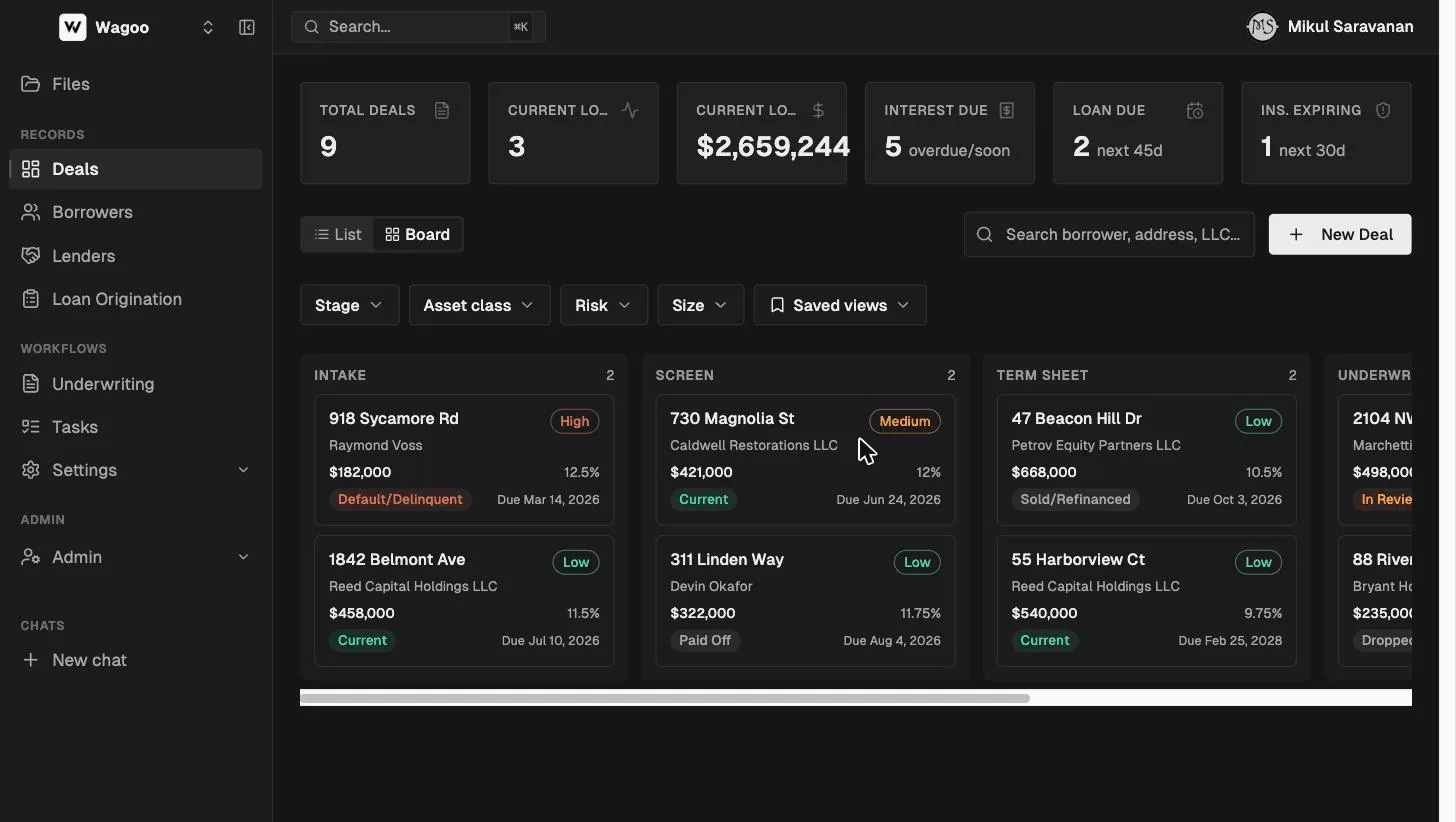
The six metric cards
Section titled “The six metric cards”The cards across the top are your daily worklist. Four are clickable filters — click to narrow the list, click again to clear (the active card gets a highlight ring). Changing a status pill or typing in search also clears the active card.
| Card | What it shows | Sub-label | Clickable |
|---|---|---|---|
| Total Deals | Every deal, including closed | — | clears the filter |
| Current Loans | Count of deals with status Current | — | filter also includes In Review |
| Current Loaned | Outstanding principal (loan + disbursed draws − principal received, floored at $0) | — | no |
| Interest Due | Interest payments overdue or due soon | ”overdue/soon” | yes |
| Loan Due | Loans maturing in the next 45 days (not already overdue) | “next 45d” | yes |
| Ins. Expiring | Deals whose property insurance expires in the next 30 days | ”next 30d” | yes |
Board view
Section titled “Board view”Board (the default) is a kanban of your pipeline. Columns come from your workspace’s stages — for example Intake → Screen → Term Sheet → Underwriting → Close — which admins rename under Settings → Pipeline Stages.
- Drag a card to another column to change the deal’s stage; it saves immediately (a failed move toasts “Could not move deal”). Dragging is disabled in demo.
- Cards show the property address (or “Untitled deal”), borrower, risk pill, loan amount, rate, status pill, and due date. Each column header shows a count; an empty column reads “No deals”.
- Deals with no stage (or an unknown one) land in the first column. The board ignores the List view’s status pills.
List view
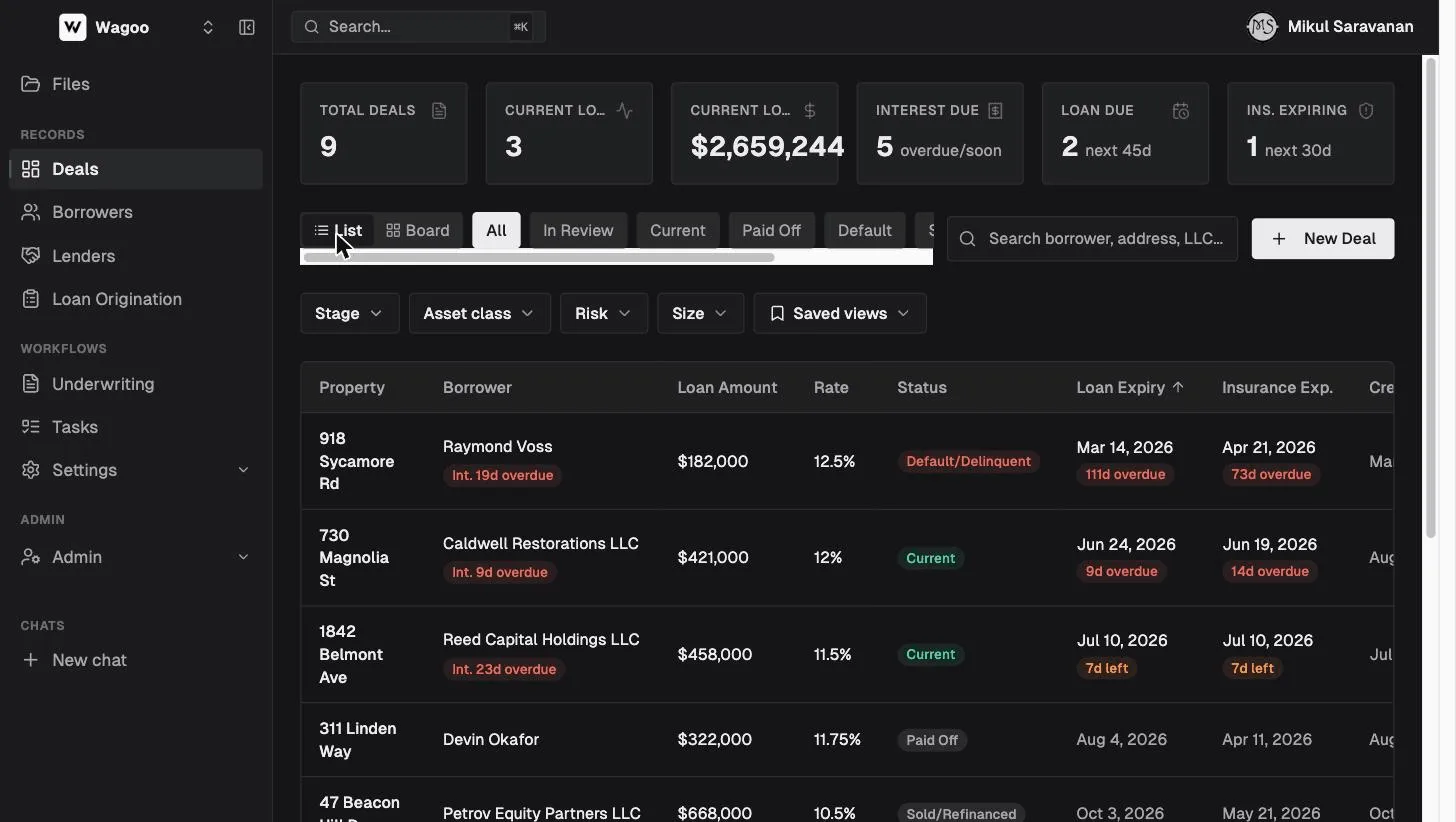
Section titled “List view”Switch with the List / Board toggle. List is a sortable table, better for date-driven servicing.
| Column | Notes |
|---|---|
| Property | Street address |
| Borrower | Name (LLC name wins), plus an interest pill — red “Int. {n}d overdue” / “Int. due now”, amber “Int. {n}d” — with a tooltip |
| Loan Amount, Rate | From the loan terms |
| Status | The deal status pill |
| Loan Expiry | Final due date — the only sortable column (click the header to flip ▲/▼); urgency badge within 60 days (“{n}d left”) or overdue |
| Insurance Exp. | Insurance end date; urgency badge within 30 days |
| Created | When the deal was added |
Status filter pills (All · In Review · Current · Paid Off · Default · Sold/Refi · Dropped Off) live above the table. Empty states read “No deals match your filters.” or “No deals yet. Create your first deal to get started.” On mobile the table becomes cards.
Search, filters, and saved views
Section titled “Search, filters, and saved views”- Search (“Search borrower, address, LLC…”) matches borrower names, property addresses, and LLC names.
- Stage / Asset class / Risk / Size filters narrow the view. Risk is a multi-select of Low Risk / Medium Risk / High Risk with a count badge; Size is a Min/Max loan-amount popover. A “Clear (n)” button appears when filters are active.
- Saved views stores a filter + search combination. The menu lets you “Save current as…” (dialog “Save view”, placeholder “e.g. IC Meeting”, helper “Shared with everyone in your team.”), update an existing view, or delete one. Saved views are shared across your whole workspace, and a ”• edited” marker shows when the current filters differ from the saved view. (Saved views are hidden in demo.)
Creating a deal
Section titled “Creating a deal”Click “New Deal” (top right). The form has four cards.
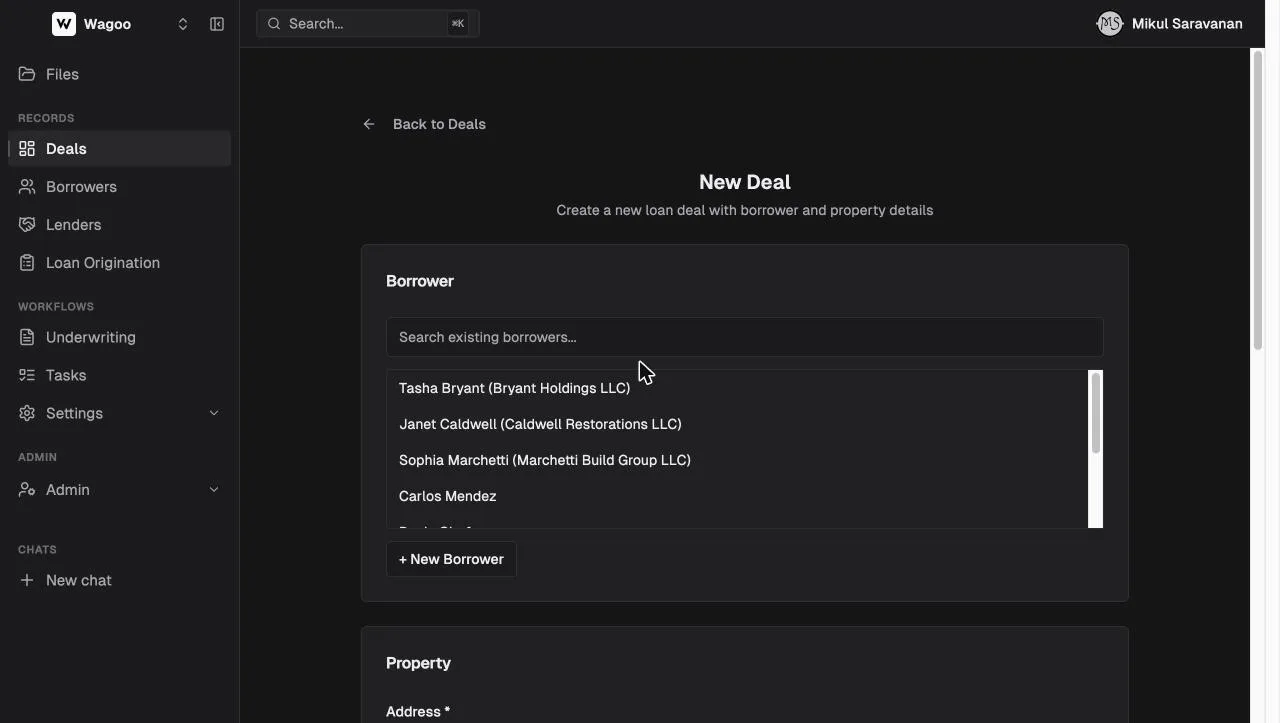
- Borrower — search existing borrowers (“Search existing borrowers…”), or ”+ New Borrower” to create one inline: Individual/LLC, First Name*, Last Name*, Email, Phone, and (LLC) LLC Name.
- Property — Address* is required; Purchase Price, ARV, Renovation Budget optional.
- Loan Summary — Loan Start Date (helper: “Needed to accrue interest on payoff.”), Loan Amount, Interest Rate, Points (helper: “Charged at payoff (end of loan).”).
- Lenders — up to five rows, each a Name and Allocation you toggle between % and $ (entering one auto-converts and shows the other). The header shows a live total: “X% allocated” or “$X allocated”, green at exactly 100% / the full loan amount, amber otherwise.
Requirements to save: a borrower (selected, or first + last name for a new one) and a property Address. Blank lender rows are dropped, and an allocation that isn’t 100% does not block submit. Click “Create Deal” (→ “Creating…”, toast “Deal created”). Status, stage, and risk are set later on the deal itself.
Inside a deal record
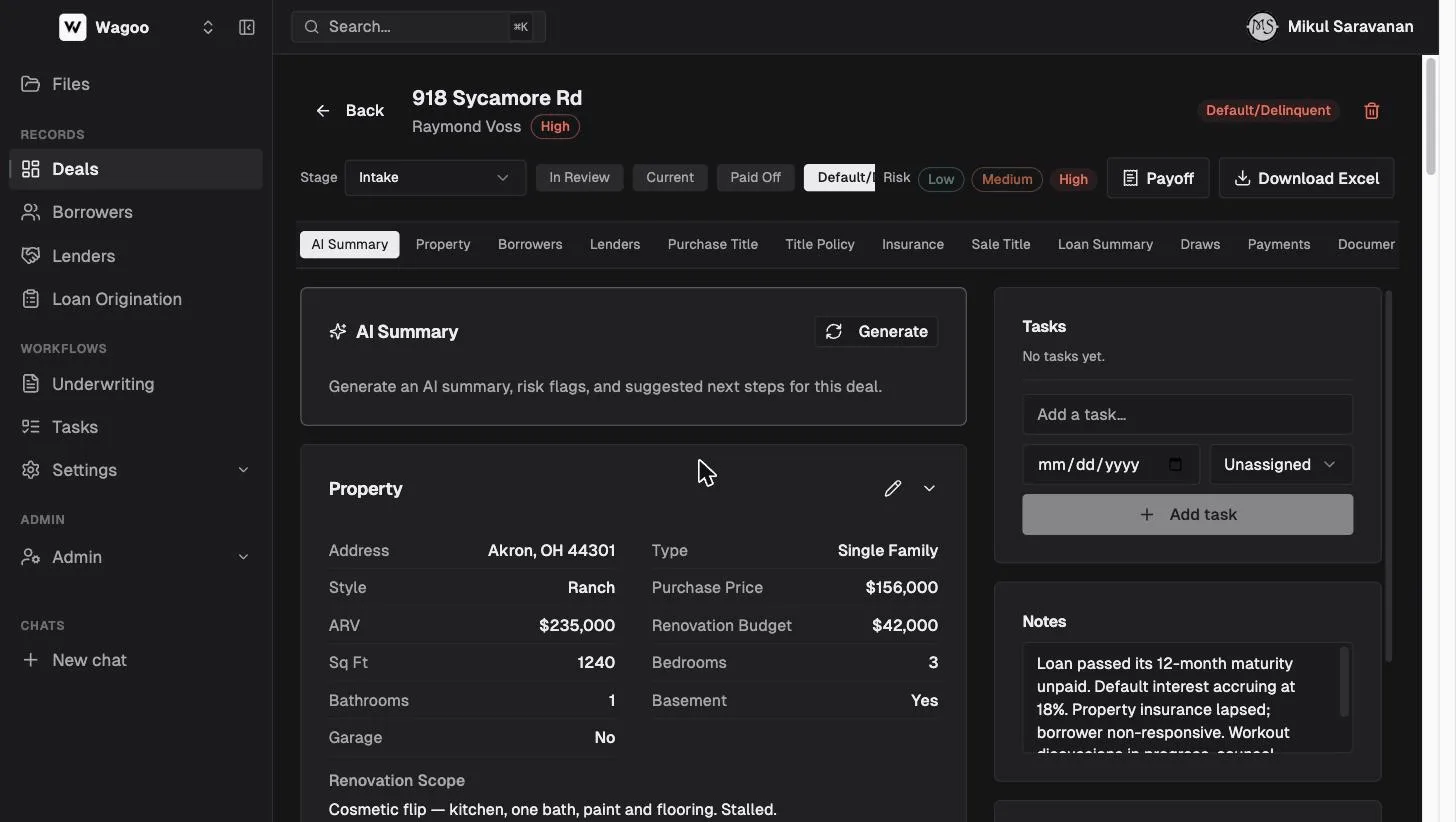
Section titled “Inside a deal record”A deal record has three zones: a control header, a stack of collapsible sections with a sticky jump-nav, and a right rail for tasks, notes, and activity.
The control header and action row
Section titled “The control header and action row”The header shows the property address, borrower (with their risk pill), and a Back button; if the deal was promoted from an application, an “Originated from loan application” link jumps back to the frozen application. The trash icon archives the deal (confirms first: “Delete this deal? This will archive the deal. It can be restored later.”).
The action row below it holds:
| Control | What it does |
|---|---|
| Stage dropdown | Moves the deal along your pipeline |
| Status buttons | One click sets the servicing status: In Review · Current · Paid Off · Default/Delinquent · Sold/Refinanced · Dropped Off. The change is immediate — no confirmation, no reason capture. |
| Risk pills | Rate the deal Low / Medium / High. Unlike a borrower’s rating, a deal’s risk can’t be cleared once set — clicking always sets a value (an unset deal shows as Low). |
| ”Payoff” | Opens the payoff calculator |
| ”Download Excel” | Exports the deal (→ “Exporting…”) |
The jump-nav
Section titled “The jump-nav”A sticky strip links to most sections: AI Summary · Property · Borrowers · Lenders · Purchase Title · Title Policy · Insurance · Sale Title · Loan Summary · Draws · Payments · Documents. (Note: Matching Lenders and Custom Fields are not in the jump-nav — scroll to them.)
The right rail
Section titled “The right rail”- Tasks — deal-scoped to-dos with a due date and assignee; they also appear on the global Tasks page. A former assignee shows as “Former member”.
- Notes — the deal-level remark (placeholder “Add notes about this deal…”), distinct from a section’s own notes.
- Activity — an automatic timeline: payments received, draws disbursed, insurance added, lenders added, stage changes, deal created.
The sections
Section titled “The sections”Most sections are a card with a pencil (edit) and chevron (collapse), and many carry a Section notes area. (AI Summary, Borrowing Structure, Matching Lenders, Payments, Documents, and Custom Fields don’t have the full pencil/chevron/notes set.)
| Section | What you record |
|---|---|
| AI Summary | Click “Generate” (then “Refresh”) for an AI-written summary, risk-flag pills, and next steps, with a “Generate an AI summary, risk flags, and suggested next steps for this deal.” prompt and an AI disclaimer. Requires the AI Assistant feature; hidden in demo. |
| Property | Address · Type (Single Family / Duplex / Multi-Family) · Units (Multi-Family only) · Style (Ranch / Colonial / Bungalow / Bi-Level / Tri-Level / Other) · Garage (kind + spaces) · Sq Ft · Beds · Baths · Basement (Yes/No) · Purchase Price · ARV · Renovation Budget · Renovation Scope |
| Borrowing Structure | The parties on the loan — details below |
| Lenders | Who funded it and each share — details below |
| Matching Lenders | Automatic credit-box matches — details below |
| Title Company — Purchase / Sale | Company, address, file number, closing date, fees, and up to three contacts (Name / Phone / Email only) |
| Title Policy | Policy number, property address, recorded-mortgage flag |
| Property Insurance | Property + optional liability policies — details below |
| Loan Summary | The full loan terms — see below |
| Custom Fields | Fields your admin defined, resolved by the deal’s scope: Flip deals show “Flips” fields, Rental deals “Rentals”, scope-less deals “Loans / Deals” |
| Renovation Draws | Fund releases — details below |
| Payments | The money ledger + Record Payment — details below |
| Documents | The loan file — details below |
Loan Summary field groups (exactly as they appear):
- Terms — Loan Start Date · Loan Amount · Initial Term (months) · Final Due Date (auto) (computed from start + term) · Initial Interest Rate
- Strategy — Scope (Flip / Rental) · Loan Type (Interest Only / Principal & Interest) · Amortization Years (only when Principal & Interest)
- Escalation (optional) — After (months) · Escalated Rate · Escalated Points
- Renovation — Renovation Allocation · Contingency Fund
- Prepaid at closing — Loan Cost · Prepaid Interest
- Postpaid at payoff — Loan Points · Loan Cost
The view renders only once a Loan Amount is set. (The expected recurring payment start date and amount are not here — they live in the Payments Expected Schedule.)
Borrowing structure: parties on the loan
Section titled “Borrowing structure: parties on the loan”The Borrowing Structure section carries the parties. Click “Manage” to switch to edit mode, “Add party” to add one. The add dialog offers three roles — Borrowing Entity, Borrower, Guarantor — and you can search existing contacts or “Create new entity/person” inline. The Primary borrower is derived (marked with a “Primary” pill and a star to reassign), not a picked role. A party mapped to a legacy borrower record links through to it.
Lender splits: fund a deal with up to five lenders
Section titled “Lender splits: fund a deal with up to five lenders”Private deals are often funded by several partners. The Lenders section records the split.
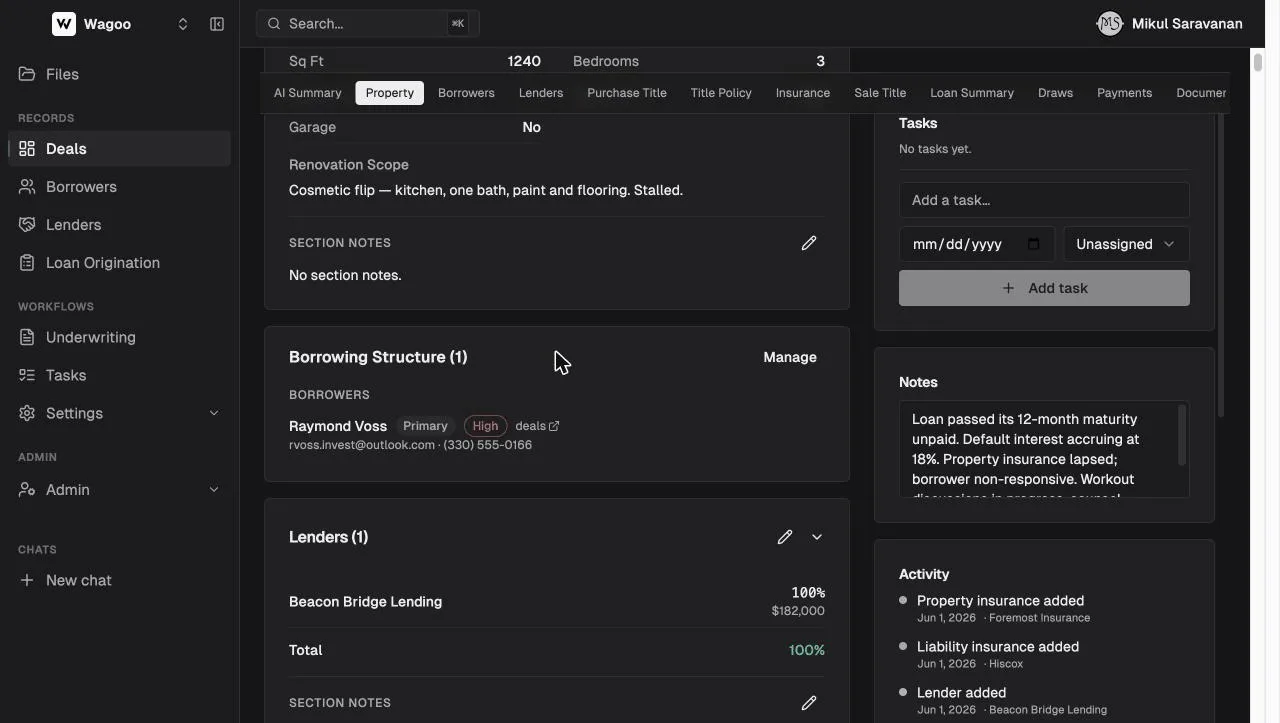
- Each row has a Name, an Allocation, and a Reference # (the Equity Trust activity number, shown as “Ref: …” in view mode).
- Toggle each row between % and $; enter one and Wagoo shows the computed counterpart.
- The Total row turns green at exactly 100% (or a dollar total equal to the loan amount) and amber otherwise; the label reads “X% allocated” or “$X allocated”.
- Maximum five lenders; row order sets priority. Blank rows are dropped on save.
Matching Lenders: who would fund this deal?
Section titled “Matching Lenders: who would fund this deal?”The Matching Lenders section scores every credit box — your own lenders plus Wagoo’s directory of 6,000+ — against this deal, and ranks who would fund it.
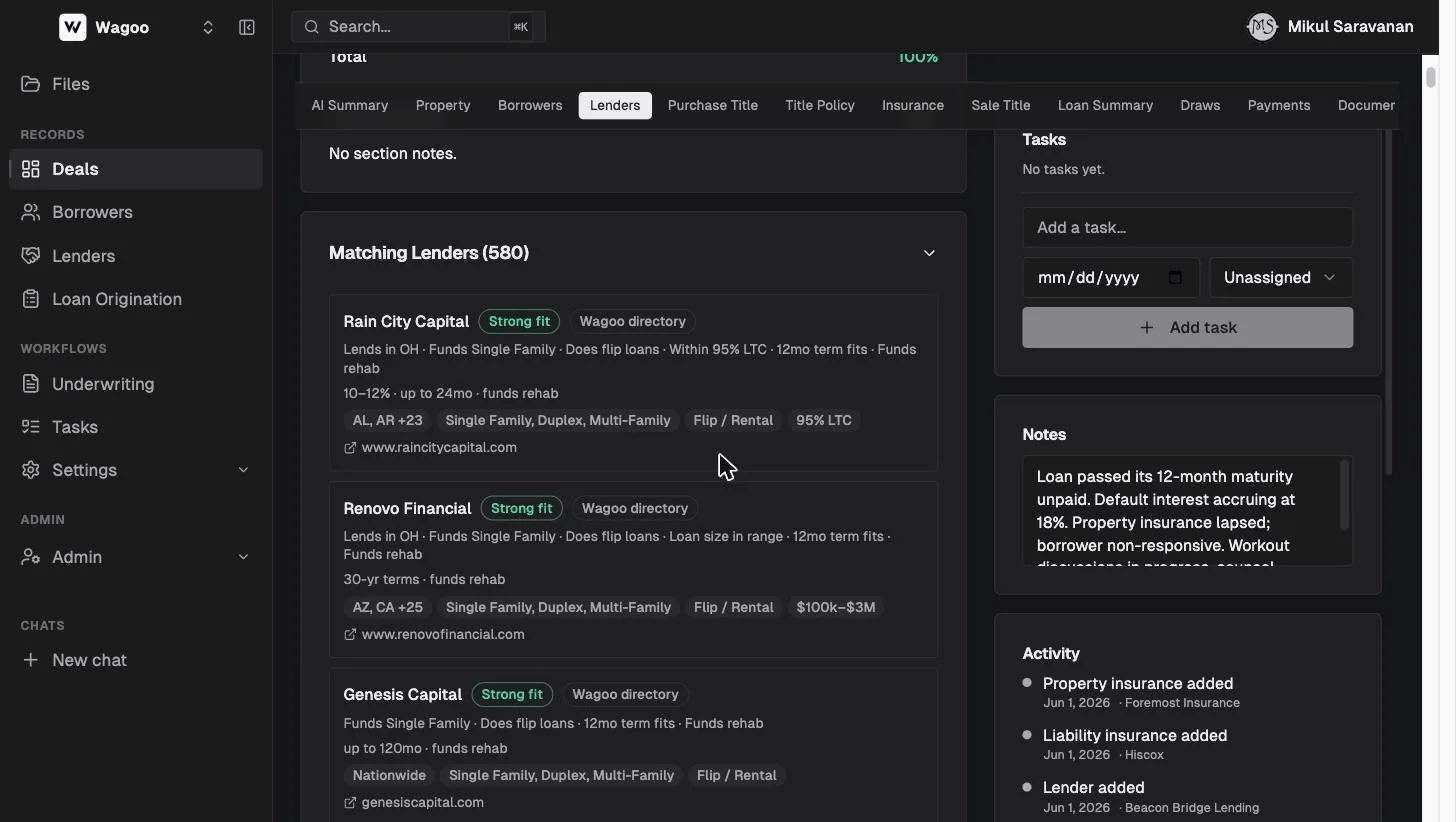
- The section header shows a count, and auto-opens only when there’s at least one Strong fit; while scoring it reads “Scoring lenders…”.
- Each match shows a fit pill — “Strong fit” or “Possible fit” (out-of-box lenders are hidden) — a source pill (“Wagoo directory” or “Your lender”), plain-English reasons, a pricing line, and credit-box chips.
- Wagoo scores location, asset class, loan size, purpose, term, and rehab funding, and a lender’s minimum-FICO floor caps its fit at “Possible”. Clicking a match opens the Lenders page. Empty state: “No lenders in your directory match this deal yet. Add credit boxes on the Lenders page.”
Insurance tracking
Section titled “Insurance tracking”The Property Insurance section tracks a property policy and (optionally) a separate liability policy — or check “Liability bundled with property insurance” if it’s one policy.
Property policy fields: Insurance Carrier · Policy Number · Coverage Amount · Agent Contact · Start Date · End Date · Payment Cadence (Monthly / Quarterly / Semi-Annual / Annual, or ”—”) · Next Payment Due. View mode also shows Last Payment and Last Verified, and a status dropdown (Active / Pending Renewal / Lapsed / Cancelled) that saves on change. Clearing all fields deletes the policy row.
One-click actions:
| Button | Effect |
|---|---|
| ”Mark Property Verified Today” | Stamps the verification date and sets the policy Active |
| ”Mark Payment Received” | Records the payment and advances Next Payment Due by the cadence (only shown when a Next Payment Due date exists; with no cadence it records the payment and leaves the date for you) |
| “Mark Liability Verified Today” | Verifies the liability policy and sets it Active |
Saving or verifying a policy syncs its dates onto the deal, powering the dashboard’s Ins. Expiring card and the list’s Insurance Exp. badges.
Renovation draws
Section titled “Renovation draws”For flips with a renovation budget, the Renovation Draws section tracks each release.
Each draw records: draw number (auto-assigned) · Requested · Approved · Date Requested · Status · Date Disbursed (shown once disbursed) · Notes. Status flow: Requested → Approved → Disbursed, with Denied as the off-ramp (color-coded; approved uses a neutral tone). The “Released so far” bar sums the approved amount of approved-or-disbursed draws against the Renovation Allocation — e.g. “$92,000 / $92,000 (100%)” — and turns red if you exceed the allocation.
The payment ledger and recording a payment
Section titled “The payment ledger and recording a payment”The Payments section is the money history for the loan.
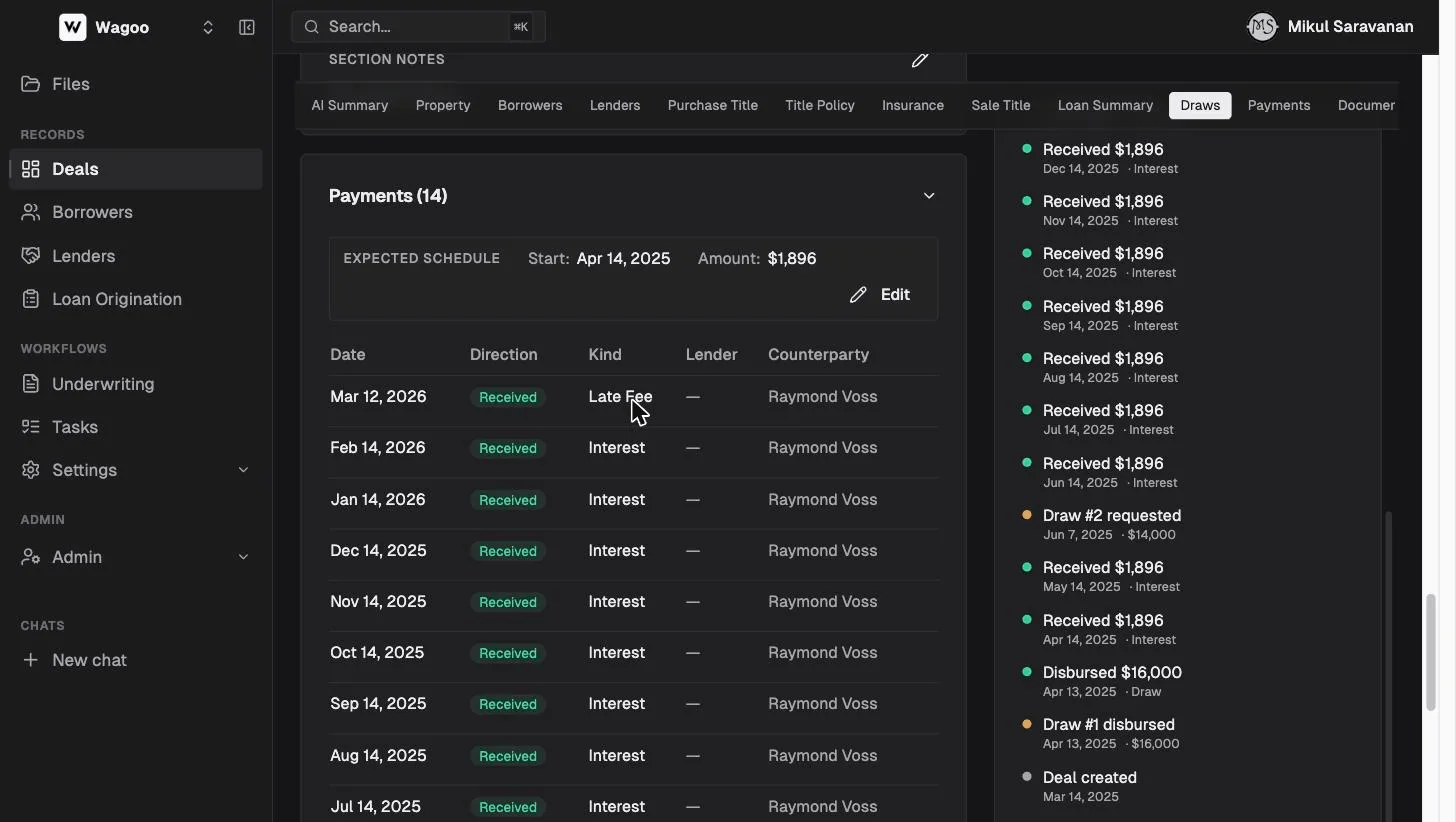
- Expected Schedule — the recurring payment’s start date and amount (e.g. Start: Sep 24, 2025 · Amount: $4,210), edited with “Edit”. This is display-only — the dashboard’s interest-due alerts come from the loan start date, amount, rate, and the actual ledger, not this schedule.
- Ledger rows — each payment shows Date · Direction (Received / Disbursed) · Kind · Lender · Counterparty · Amount.
Recording a payment
Section titled “Recording a payment”Click “Record Payment” to open the form — the most detailed control on the page:
- Date*, Direction* (Received / Disbursed), Total Amount*.
- Auto-fill (“Suggest split based on monthly interest ($X/mo)”) pre-fills a split.
- A components editor — “Add Component” offers Principal, Interest, Points, Fee, Late Fee, Default Interest, Recovery Cost, Prepaid Interest Credit, Payoff, Draw, Contingency Draw, Other (Other takes free text). A live indicator reads ”✓ Components match total” or “Components sum to $X — must equal $Y”. A single-component payment takes that kind; a multi-component one is stored as a “repayment” with a breakdown.
- Lender (allocate to a specific lender), Counterparty, Notes.
- A totals footer shows “Received: $X · Disbursed: $Y · Net: $Z” with a principal/interest sub-line.
Removing a payment confirms first: “Remove this payment? {date} · {direction} · {amount}. This cannot be undone.”
Documents and the required checklist
Section titled “Documents and the required checklist”The Documents section is the loan file, in two layers.
Required Checklist with a completion counter (counts Uploaded + Waived) over the standard set:
| Default item | Required by default |
|---|---|
| Signed Promissory Note | ✔ |
| Recorded Mortgage | ✔ |
| Title Policy | ✔ |
| Insurance Certificate | ✔ |
| Comps / BPO · LLC Docs · Purchase Agreement | — |
Each item has a status (Missing / Uploaded / Waived) and a “Link document” picker; linking a file auto-sets it to Uploaded. (There’s no UI to add new checklist items — custom items only show if they already exist on the deal.)
Category buckets — Pre-Closing, Closing, Post-Closing each have a dashed Upload target; Uncategorized has a separate “Upload (uncategorized)” button and only appears when non-empty. Files open/download via a short-lived (60-second) signed URL, move between categories, or are removed (no confirmation on remove).
Payoff calculator and payoff letters
Section titled “Payoff calculator and payoff letters”Click “Payoff” to open the Payoff Request dialog. It auto-calculates on open, defaulting the Payoff Date to the Final Due Date (or today if that’s past); change the date and it recomputes.
The dialog shows summary tiles (Total / Principal / Interest / Points / Fees), a Line Items table with day-count notes, and — for multi-lender deals — a Lender Split table, then a “Download Payoff Letter (PDF)” button for a branded letter. The interest math follows a per-workspace payoff profile (day-count basis, escrow basis, and discharge/wire/legal fees) that a super-admin configures.
If the deal has no Loan Start Date the calculation still runs with zero interest and warns: “No loan start date is set on this deal, so interest cannot be accrued. Add a start date in the Loan Summary…”
Frequently asked questions
Section titled “Frequently asked questions”How do I change a deal’s status? Open the deal and click a status button in the action row (In Review, Current, Paid Off, Default/Delinquent, Sold/Refinanced, Dropped Off). It applies immediately — no confirmation, no reason capture.
What’s the difference between a deal’s stage and its status? Stage is your pipeline position (the board column). Status is the loan’s servicing state (performing, delinquent, closed). They move independently.
Why does a Paid Off deal still show up in the Ins. Expiring card? The metric-card counts don’t exclude closed deals — only the list-view urgency badges and interest schedule do. Filter the list to a closed status to review those deals separately.
Can more than five lenders fund one deal? No — five is the maximum. Track finer participations in a lender’s Notes or a custom field.
Does deleting a deal destroy its data? No. Delete archives the deal (removed from lists, restorable); payments, documents, and history are kept.
Can I clear a deal’s risk rating once I’ve set it? No — a deal’s risk always resolves to a value (an unset deal reads as Low). A borrower’s rating, by contrast, can be cleared on their record.
Next: Borrowers · Lenders & credit boxes · Intake forms · Files & Tasks · Loan Origination